Skip to content
Blur Options
Contents
Gauss Blur
- In Objects and Animation, with the Object Highlighted
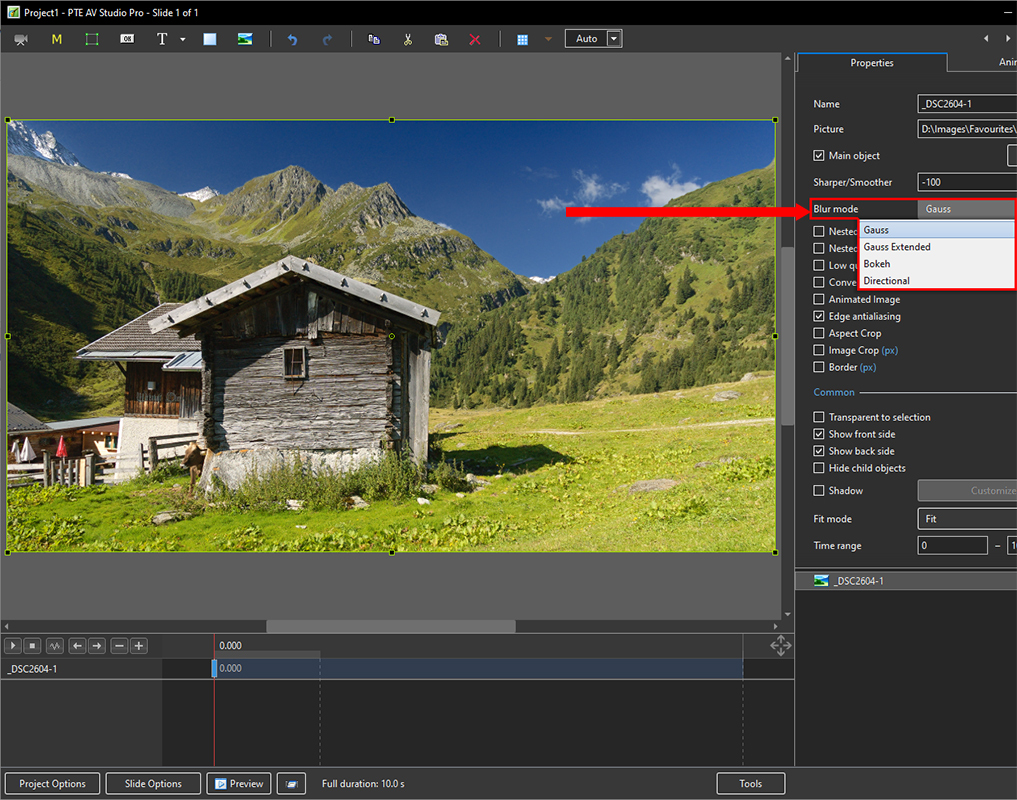
- In Properties Tab, choose "Blur Mode"
- In the dropdown menu choose "Gauss"
- In Animation Tab tick "Blur"
- R = Amount of Blur
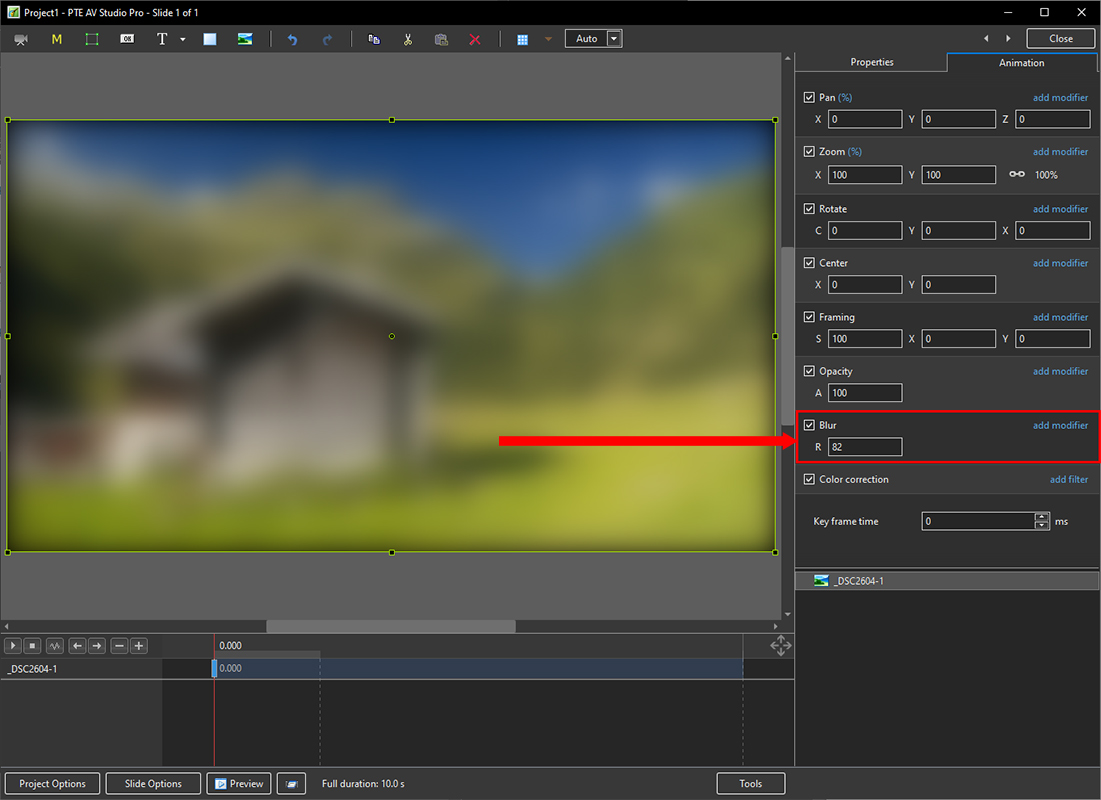
- The "Gauss" Blur effect can produce a "vignette" effect which can be eliminated by using "Gauss Extended":
Gauss Extended Blur
- In Objects and Animation, with the Object Highlighted
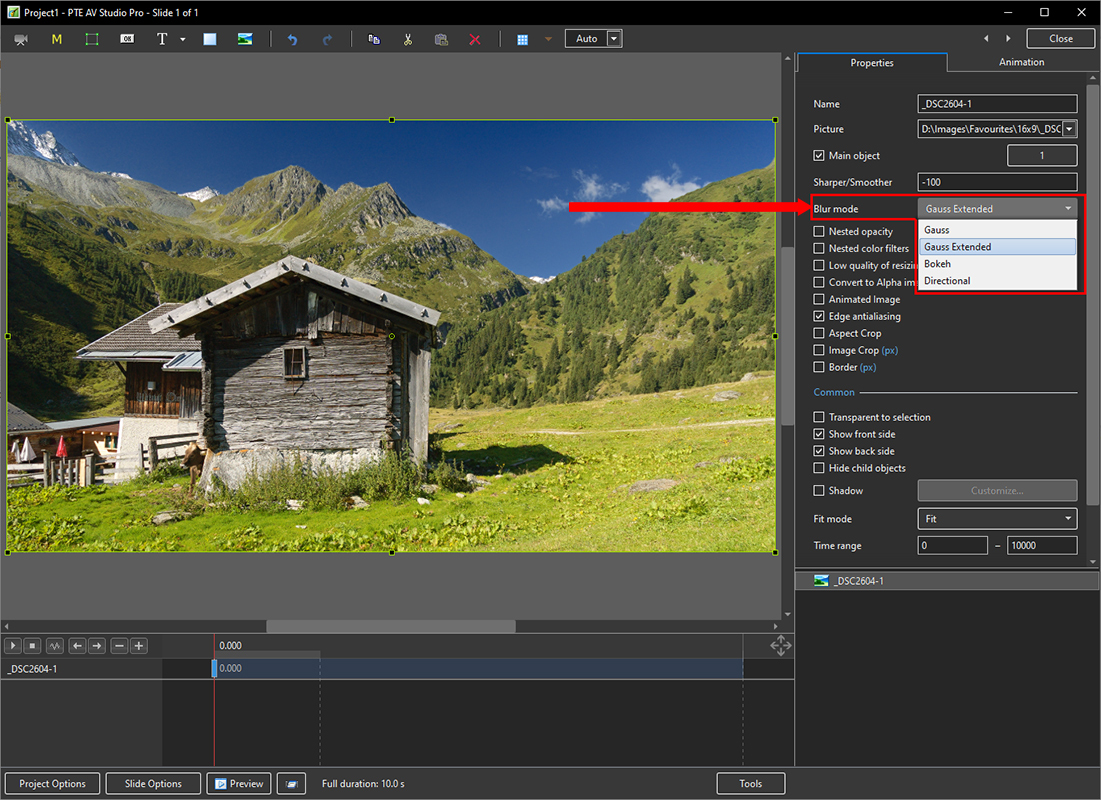
- In Properties Tab, choose "Blur Mode"
- In the dropdown menu choose "Gauss Extended"
- In Animation Tab tick "Blur"
- R = Amount of Blur
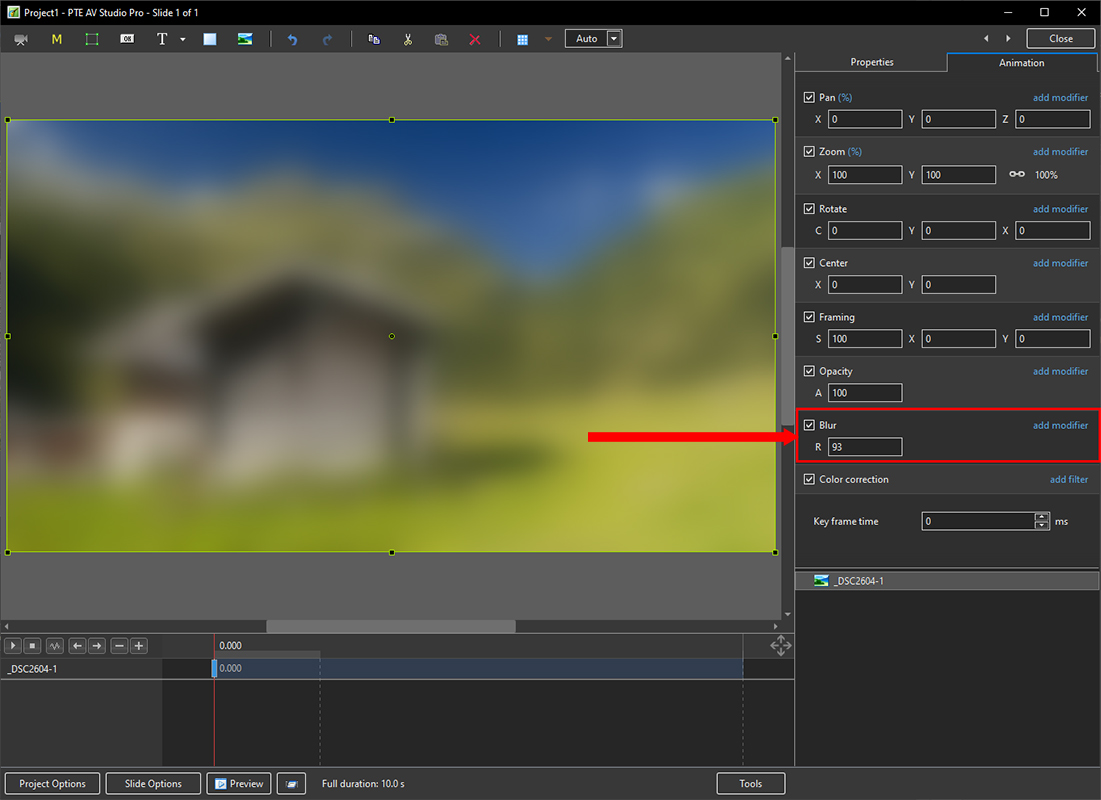
- Note the lack of "Vignette"
Blur with Bokeh
- In Objects and Animation, with the Object Highlighted
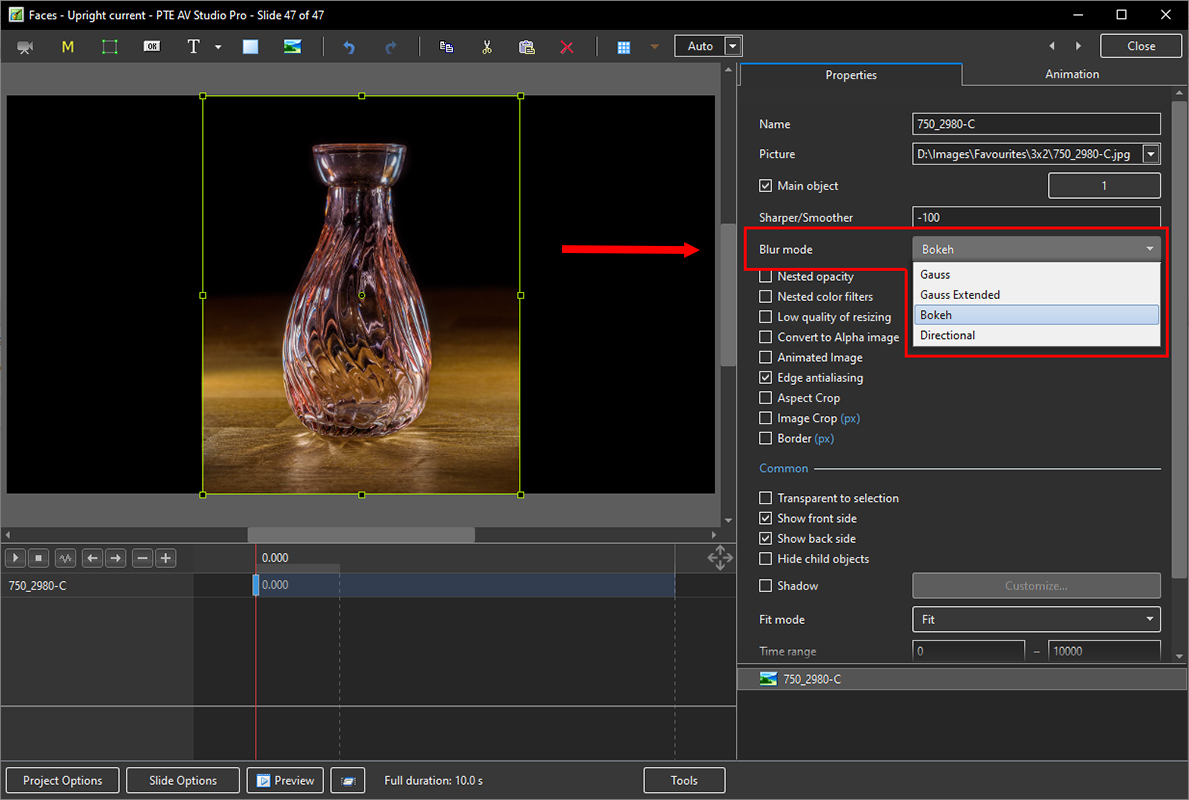
- In Properties Tab, choose "Blur Mode"
- In the dropdown menu choose "Bokeh"
- In Animation Tab tick "Blur"
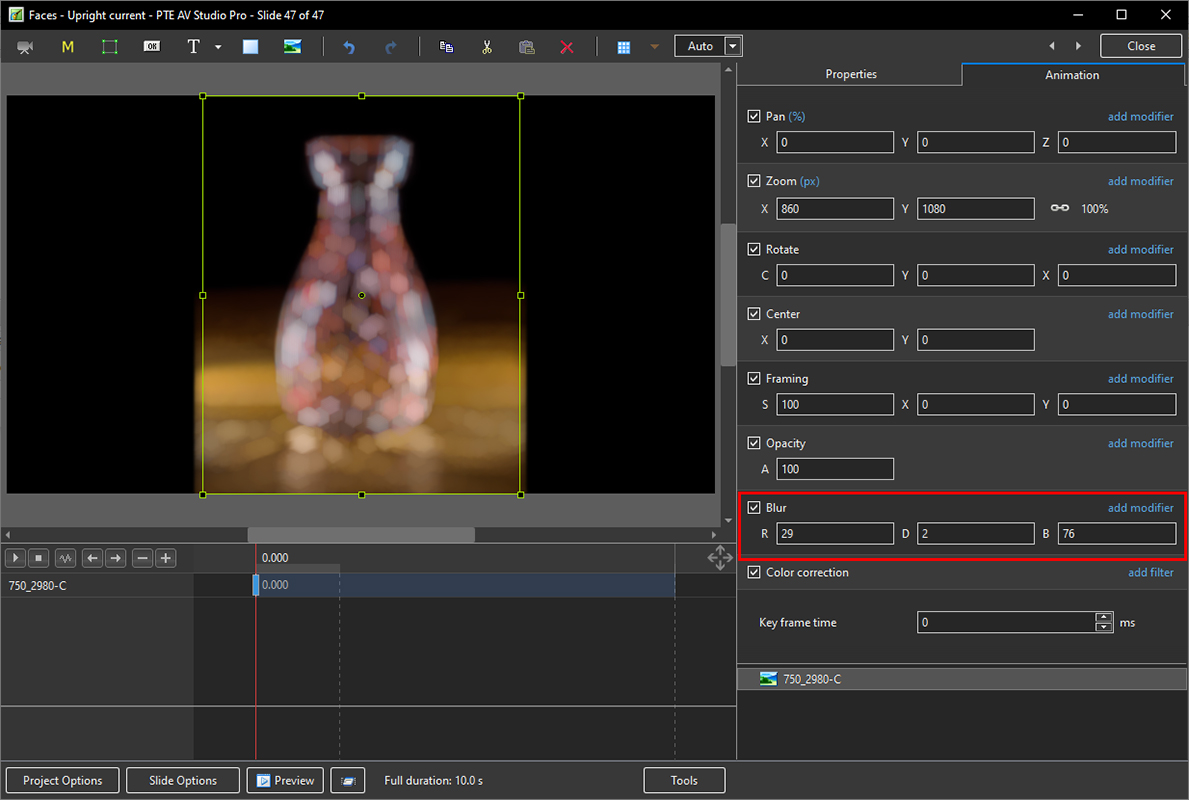
- R = Amount of Blur; D = Direction of Blur; B = Intensity of the Effect
- In Animation Tab tick "Blur"
- R = Amount of Blur; D = Direction of Blur; B = Intensity of the Effect
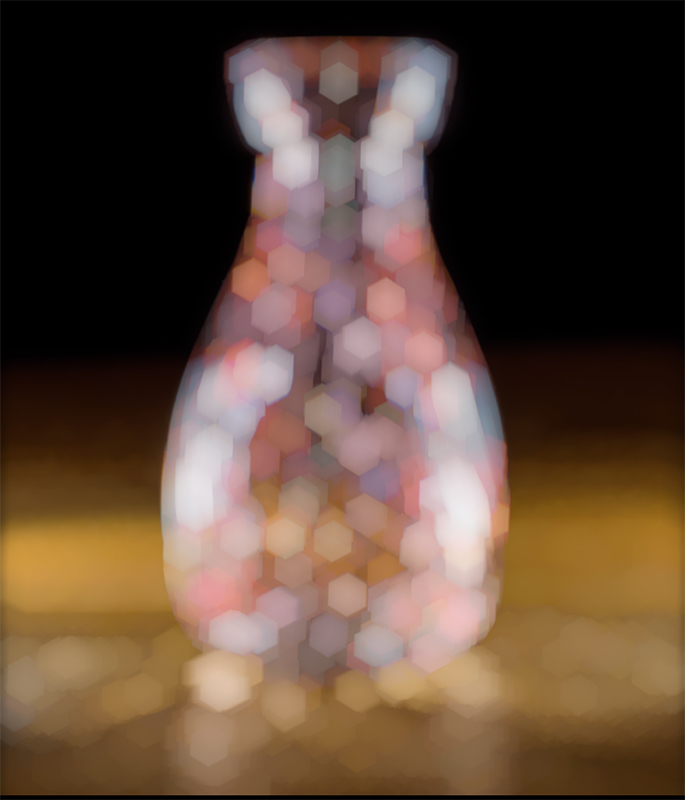
Directional Blur effect
- In Objects and Animation, with the Object Highlighted
- In Properties Tab, choose "Blur Mode"
- In the dropdown menu choose "Directional"
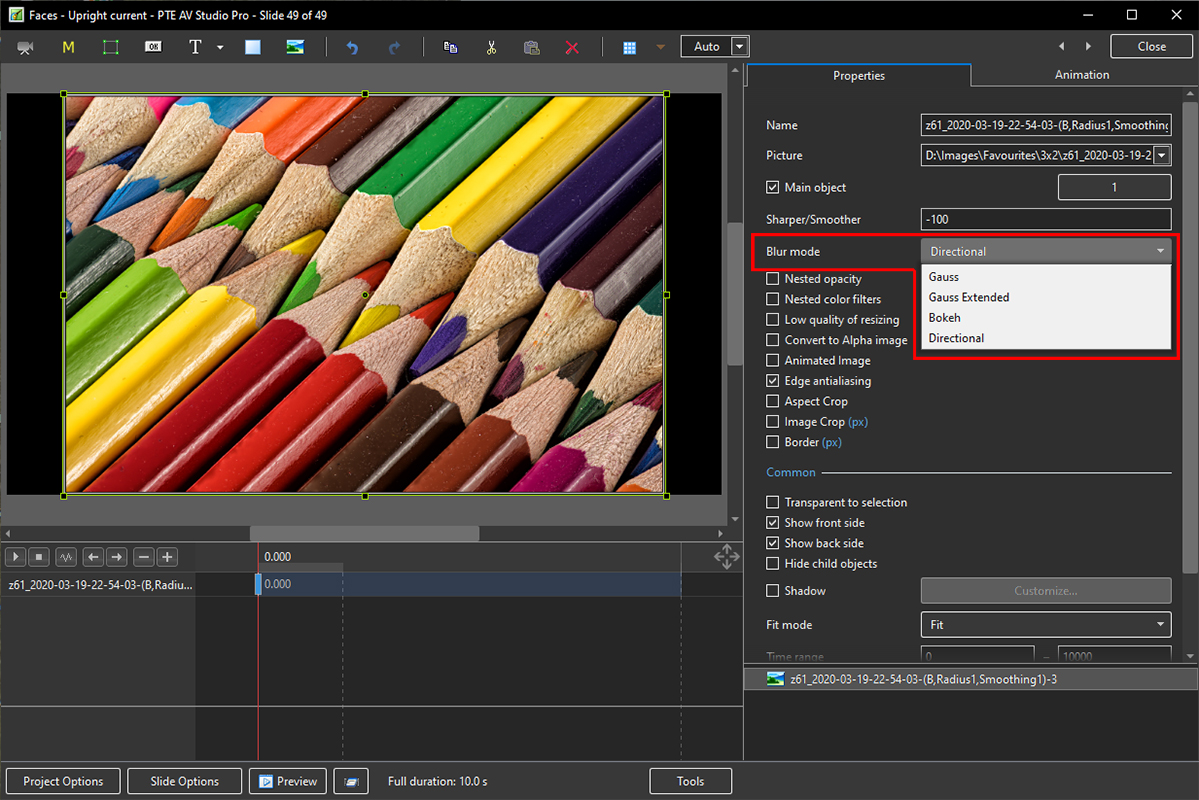
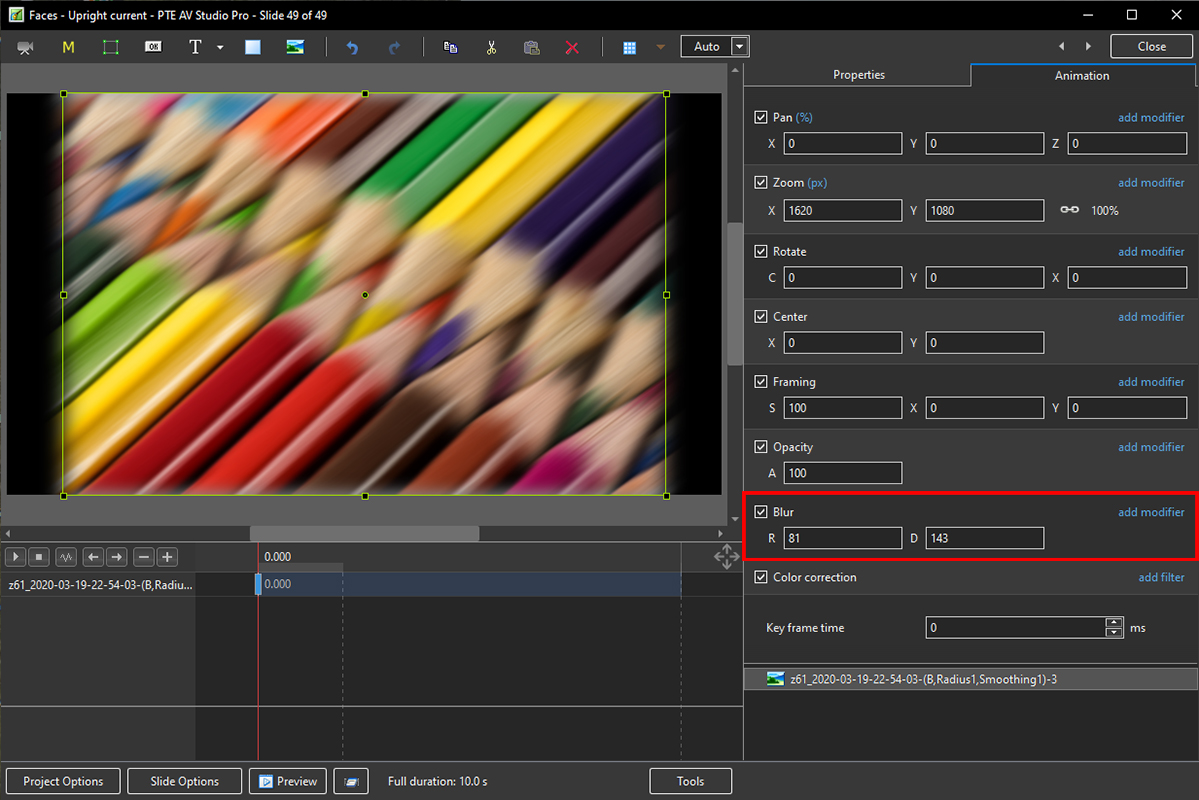
- In Animation Tab tick "Blur"
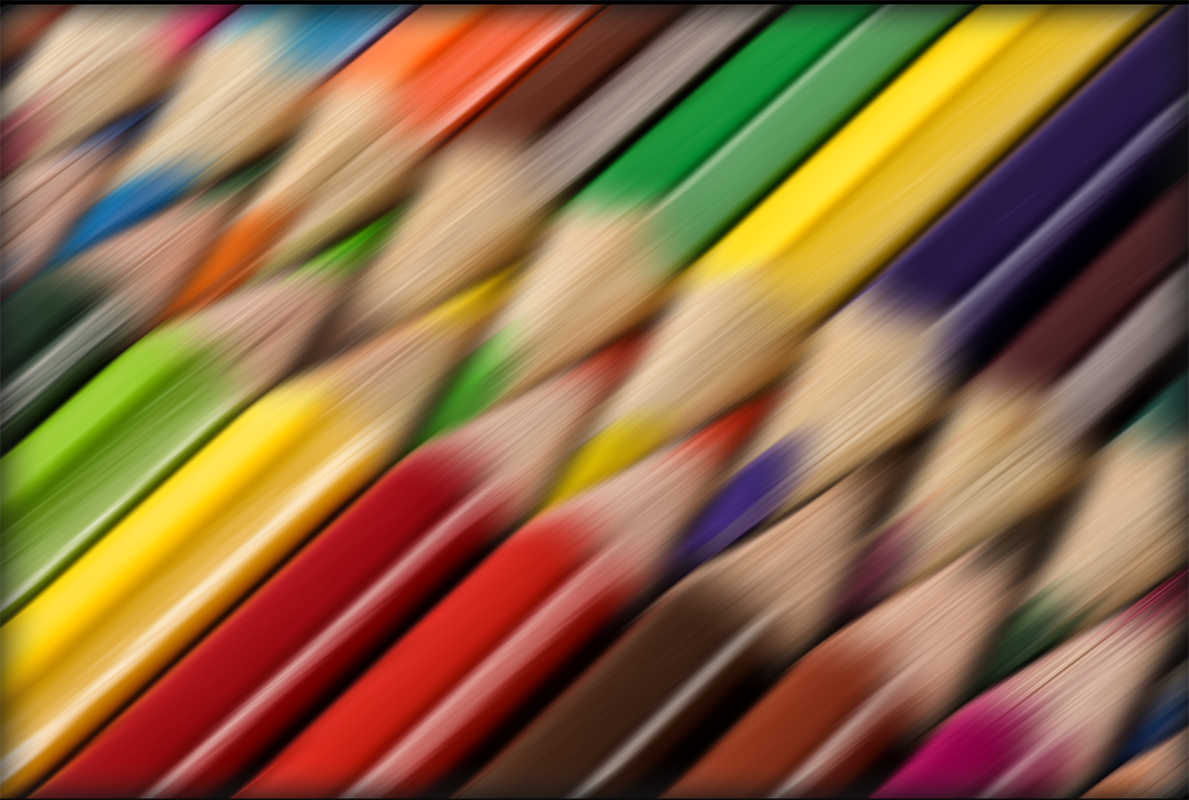
- R = Amount of Blur; D = Direction of Blur