Skip to content
Master / Link Video
Run a video clip over multiple slides
- Example:
- To run a 32 second video clip continuously over four 8 second slides
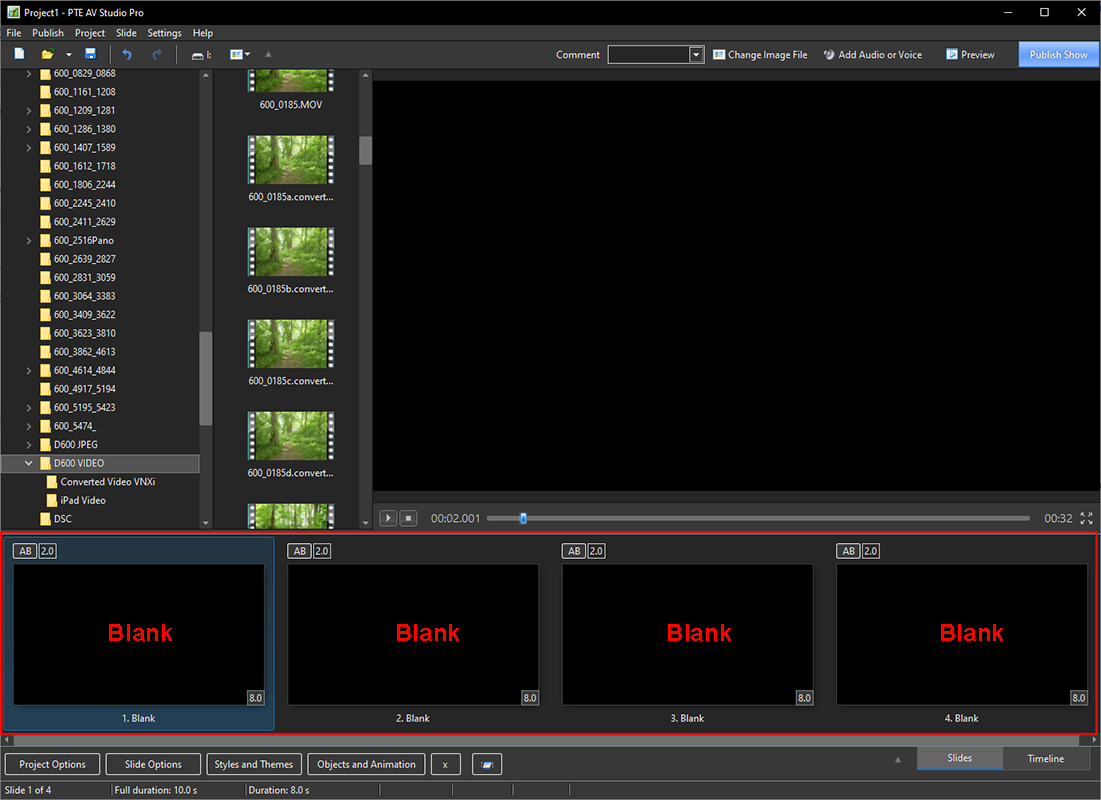
- Add four 8 second blank slides to a project ("Show Full Slide Duration" OFF in Preferences/Project)
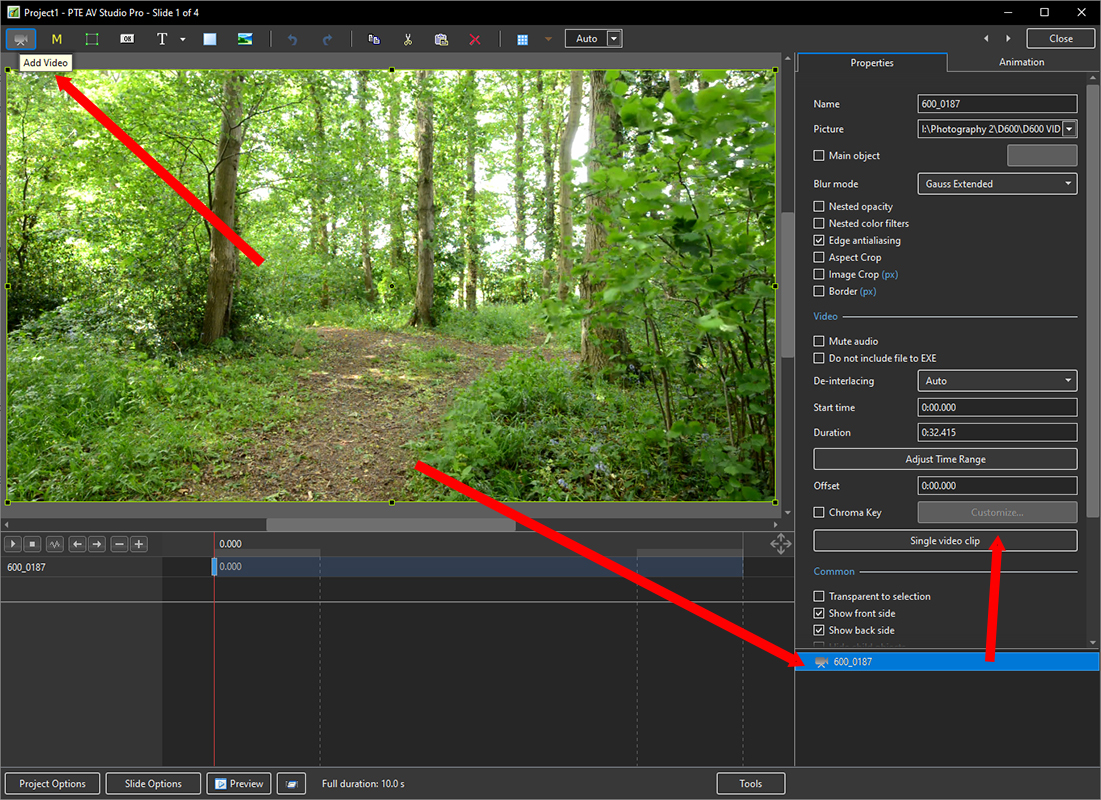
- Open Slide 1 in the Objects and Animation Editor and add the 32 second video
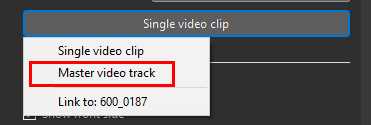
- Change "Single Video Clip" to "Master Video Track"
- In the Objects and Animation Editor, copy the Master Video Track and navigate to Slide 2 (Next Slide)
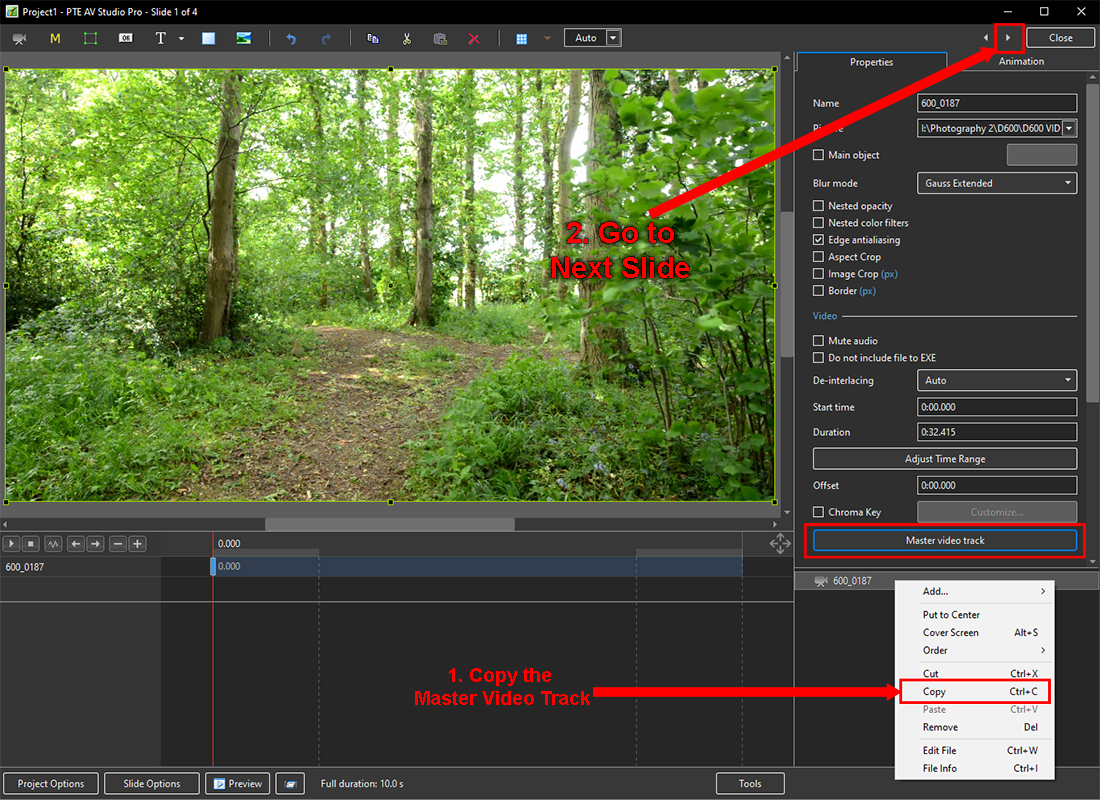
- Paste the Copied Master Video Track
- Note that the Video Clip is automatically designated "Link to: (Master Video Track)"
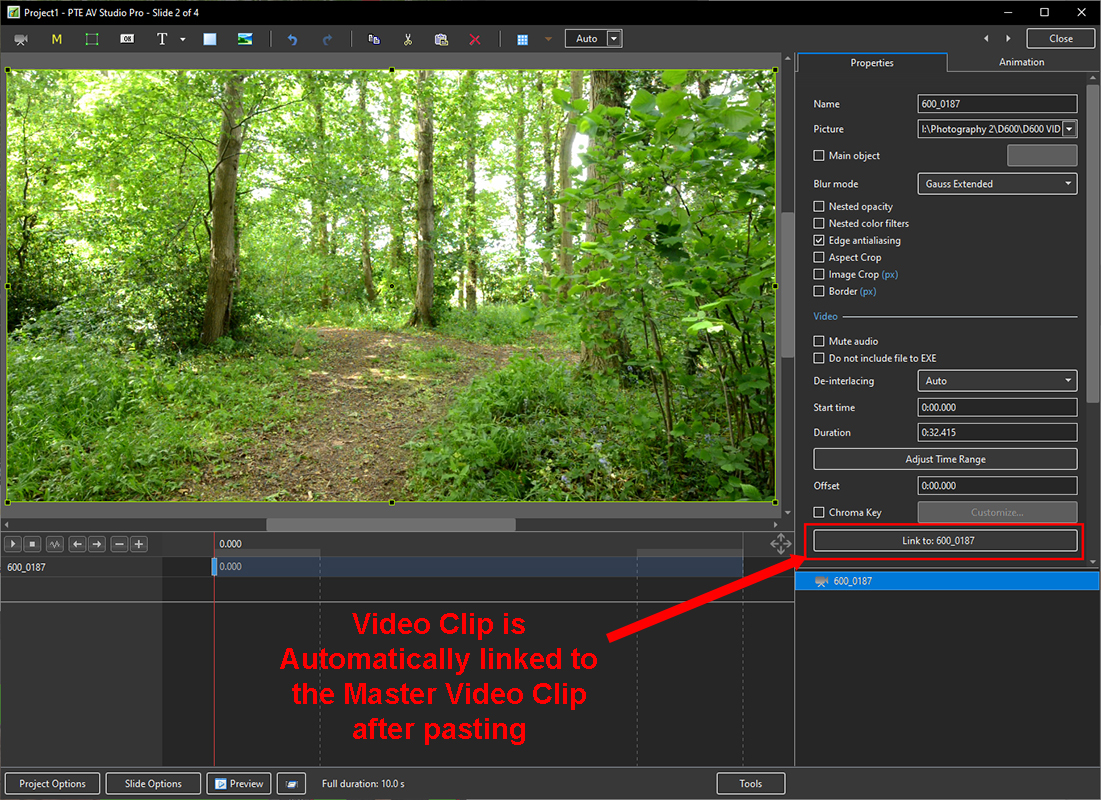
- Repeat the Copy/Paste procedure to the next two blank slides
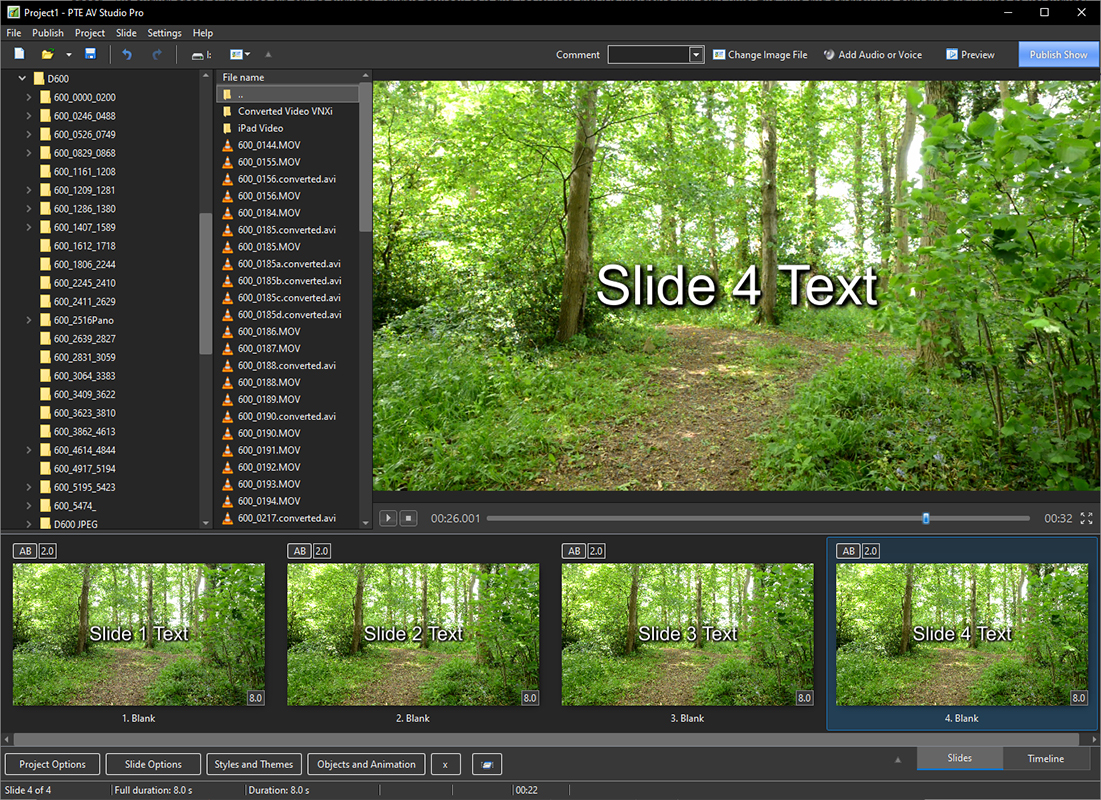
- Text, or other objects, can be added to the continuously running video over four slides