Skip to content
Simple Pan/Zoom
Simple Pan
- Add an image to a Slide in the Slide List or in Objects and Animation
- Go to Objects and Animation
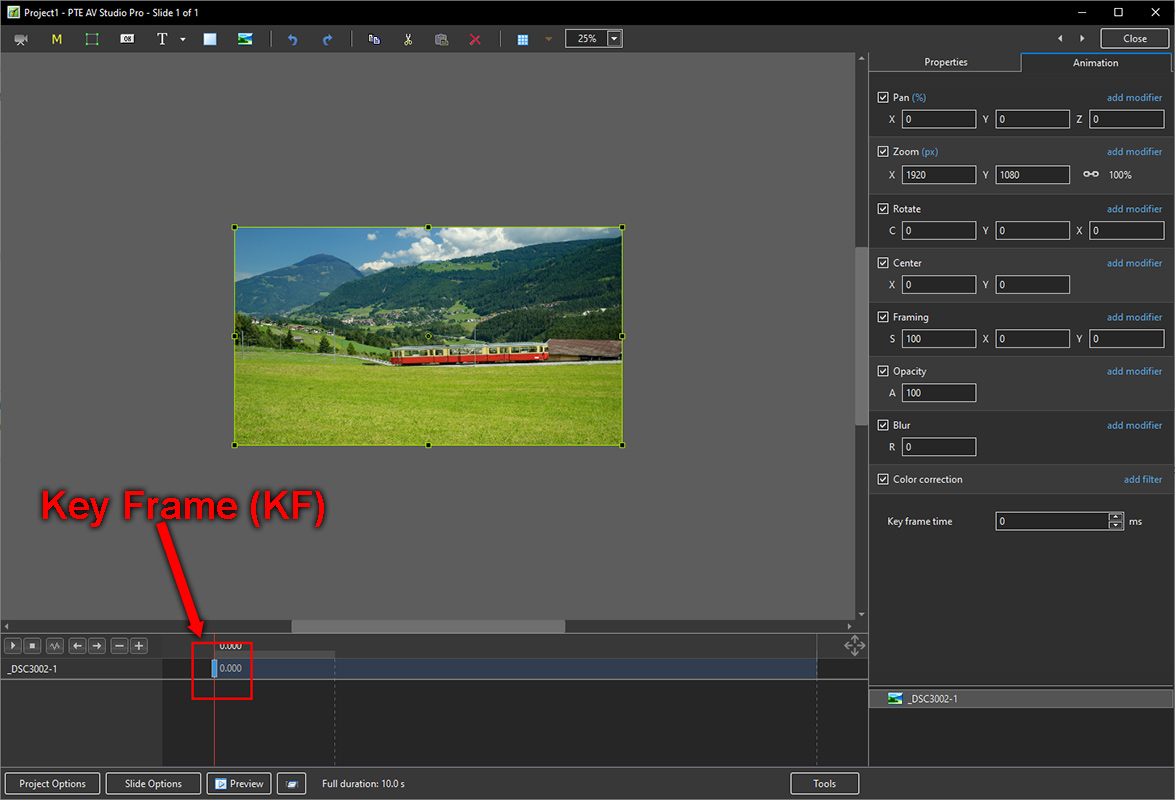
- Note the Key Frame:
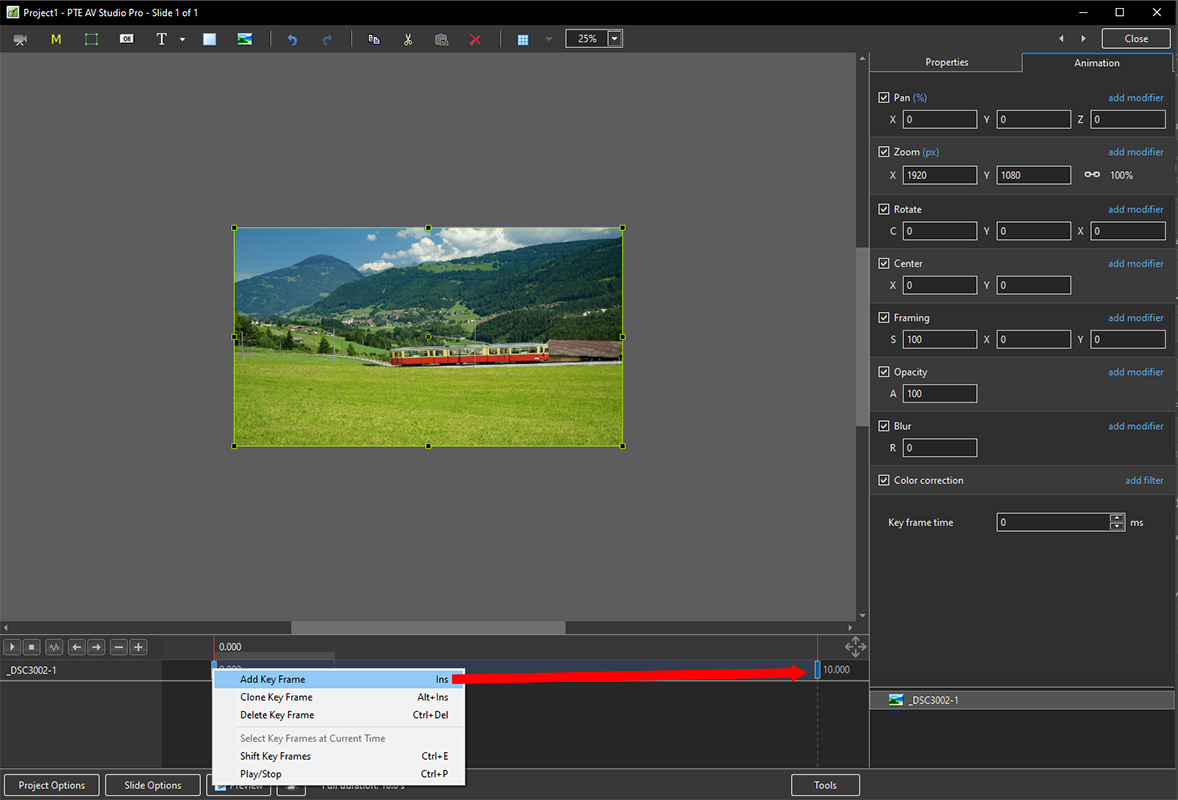
- Right click on the Key Frame
- Choose Add Key Frame:
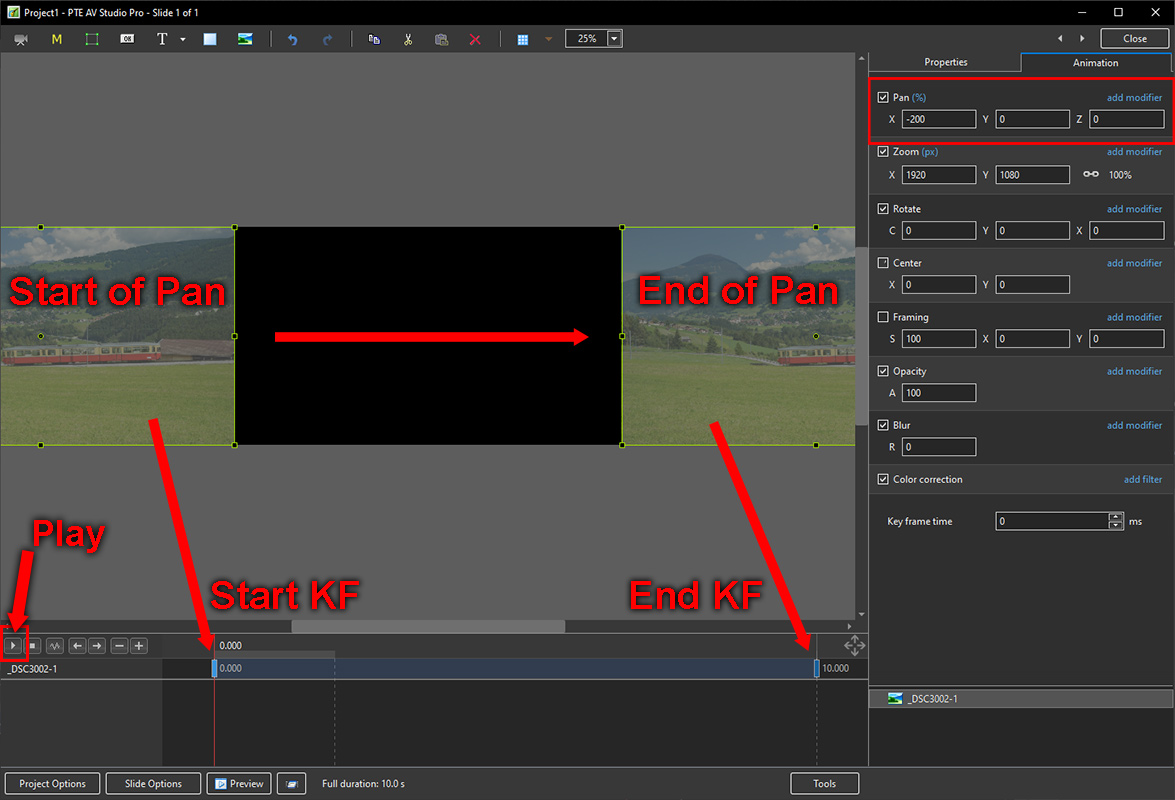
- Highlight the Start Key Frame (KF)
- Move the Image/Object to the required Start Position by dragging or by use of the Pan Controls in the Animation Tab
- Highlight the End Key Frame
- Move the Image to the required End Position by dragging or by use of the Pan Controls in the Animation Tab
- Press Play to preview the Pan Animation:
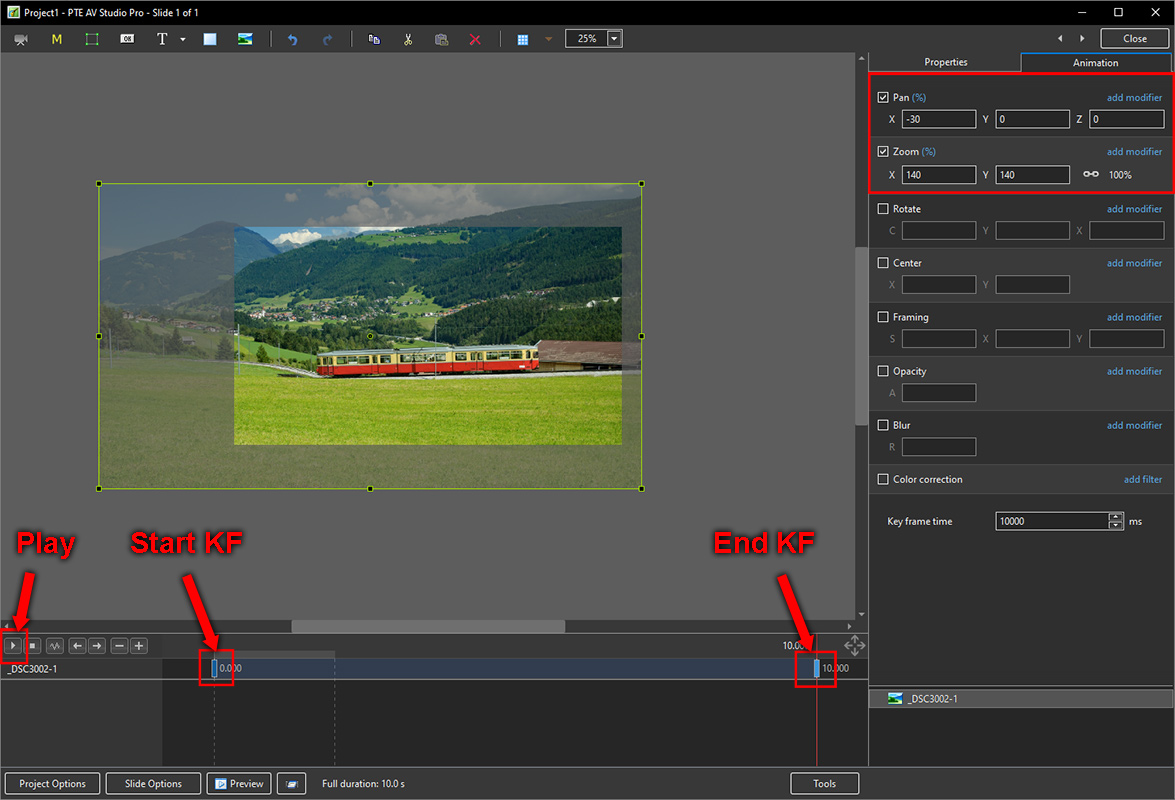
Simple Zoom
- Add an Image to a Slide in the Slide Line or in Objects and Animation
- Go to Objects and Animation
- Add a Key Frame as above:
- Adjust the Pan and Zoom controls as required for the Start KF
- Adjust the Pan and Zoom controls as required for the End KF
- Press the Play Button to preview the Animation: